


Add-on installation
You can easily add the add-on to your online store by ordering it on Shoptet Add-ons.
What can the add-on do?
- show different detailed product descriptions to different customer groups
- work with fully graphical product descriptions
- load current product descriptions from Shoptet
- give you a user-friendly admin
- work with multilingual online stores
Customer groups
In your store admin, set up the customer groups you need. Customer groups are created under Customers → Groups. You will find more details in this article.
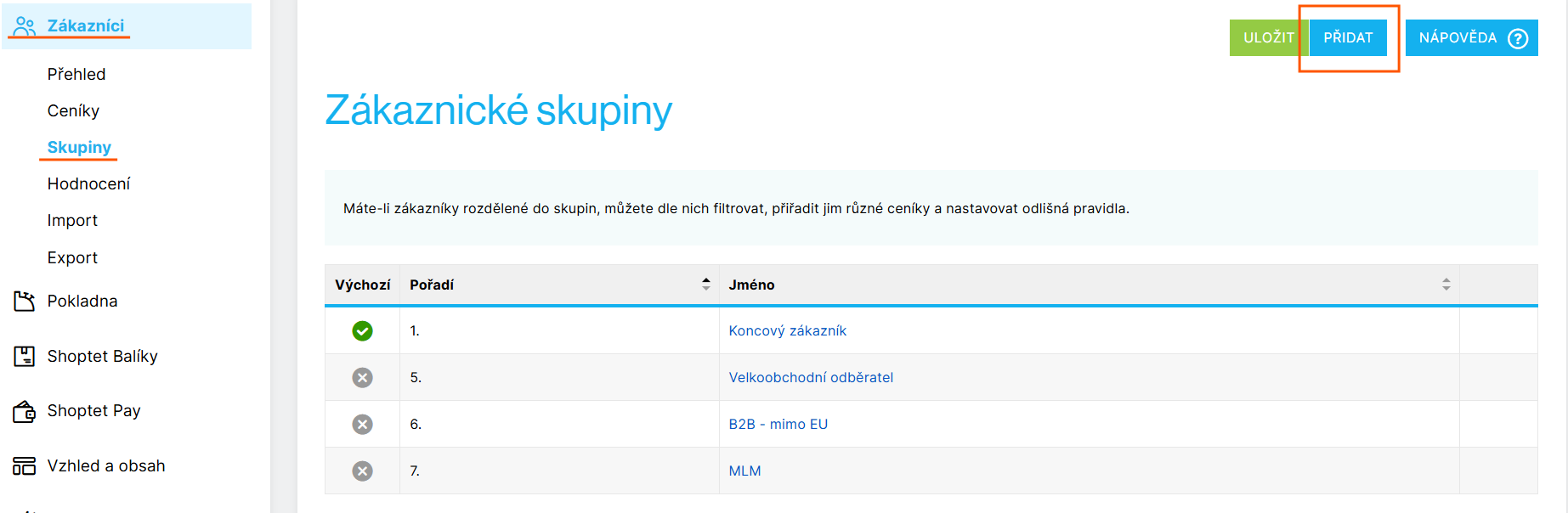
Then you need to assign your customers to the groups, if you haven't done that yet. You can also do it in bulk through customer imports.
Introducing the add-on interface
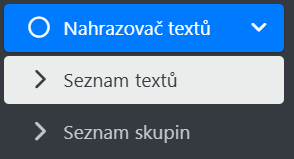
Once installed, our add-on is controlled from our own clear admin. You get there by logging in at this link: https://shoptet.webotvurci.cz/login
The add-on has two main sections:
- Text list – this is where the main work happens; you write the texts for your products here
- Group list – here you see an overview of the customer groups loaded automatically from your Shoptet
Text list
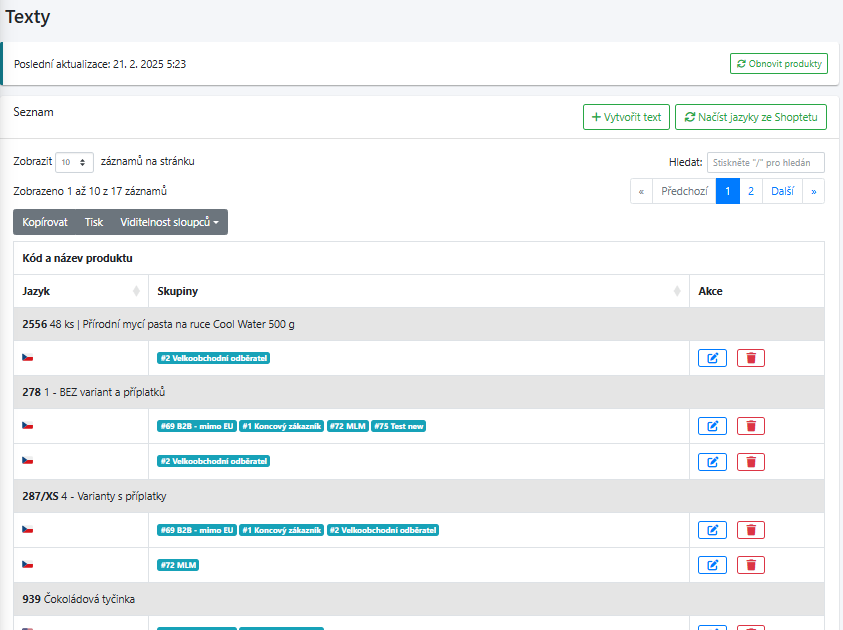
What the buttons do:
- Refresh products – updates the product database from Shoptet. If you have added or edited products since the last update, click this button to bring the database up to date.
- Create text – used for writing new product texts, or for adding new language versions to existing texts.
- Search – finds texts by product code, text and product GUID.
- Copy – copies the visible rows of the table below to the clipboard.
- Print – prepares the visible rows of the table below for printing.
- Column visibility – sets which columns are visible in the table below.
- Blue pencil icon – edits the texts of a product.
- Trash – deletes all alternative texts of a product. If you want to delete the text for one specific group, open the text editing screen for that product, select the text for the group you want and click Delete.
Creating a new text
Clicking Create text takes you to the screen where you write and edit texts for individual products.
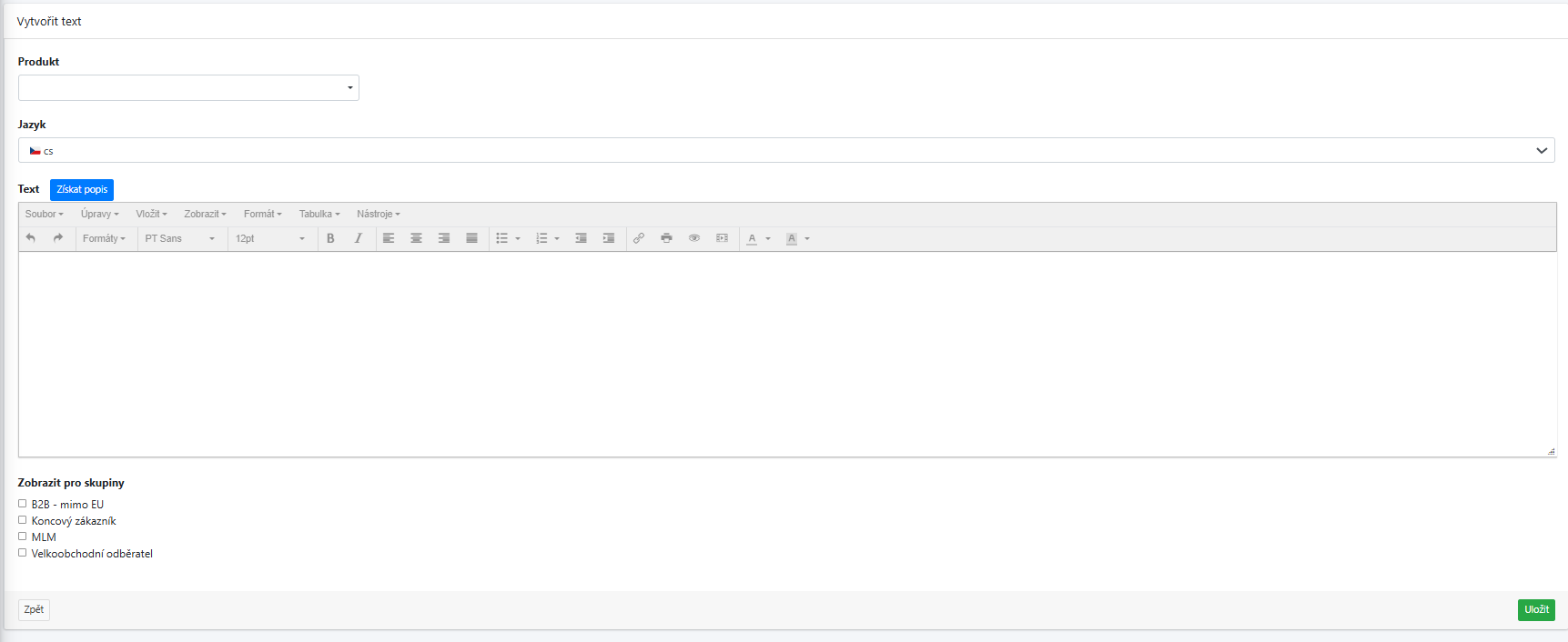
Product – here you can search for a product by its name or product code. The list automatically offers every product you have in Shoptet.
Language – select the language version of the store you want to write your own text for.
Get description – this button loads the product description from Shoptet automatically. So you don't have to copy and paste it by hand.
Text – a text editor for writing the texts. It works the same way as in Shoptet when you edit products. If you need to add scripts, code or a graphical product description, click Tools → Source code in the editor and make your changes there.
Show for groups – select which customer groups the text is meant for.
Back – returns you to the Text list section. Save – saves the text you prepared and customers start seeing it right away.
Note: If you don't write your own text for a customer group, that group sees the text uploaded in Shoptet.
Once you save the text, an extended version of the text screen opens.
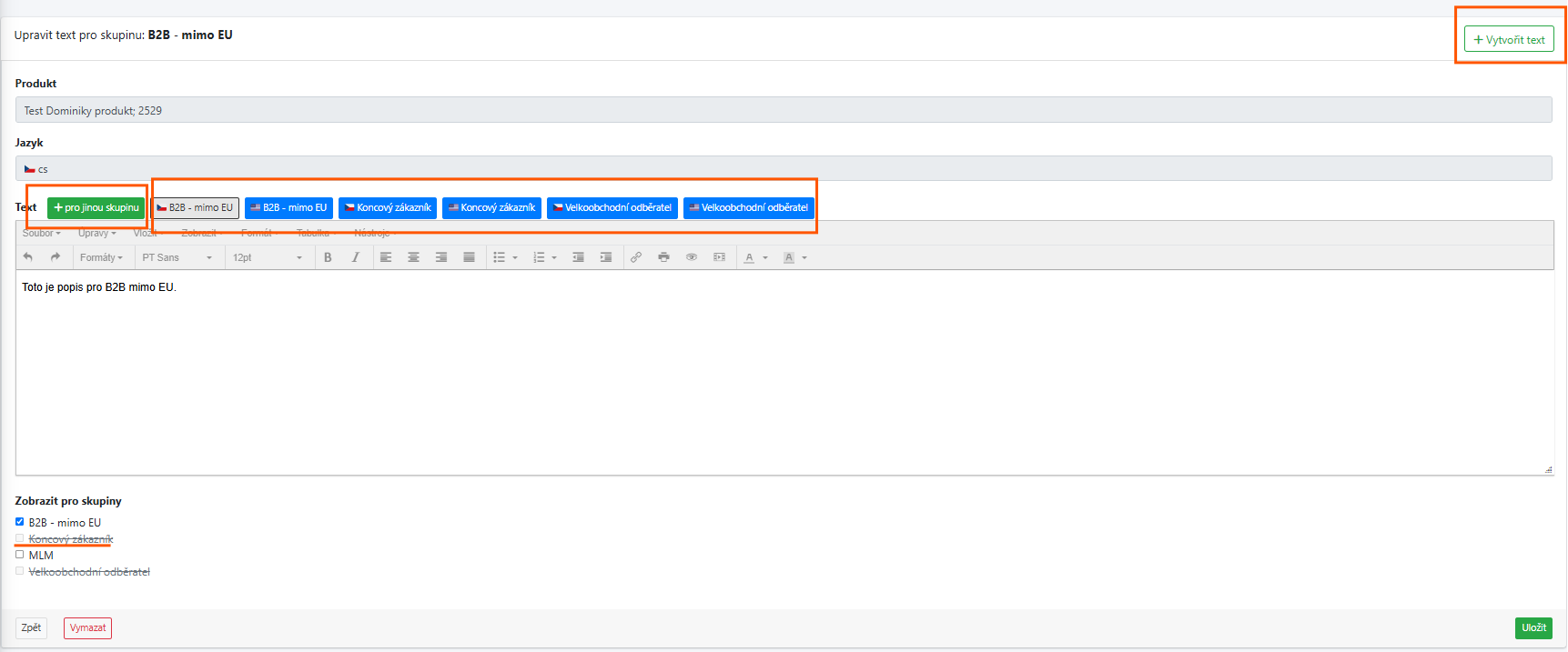
The Create text button appears – it is used for writing new texts. If you need a text in a new language for the same product, use this button too.
The + for another group button appears – use it to create a new text in the same language for a different customer group.
In the same row you get buttons for switching between the texts already written for individual customer groups.
Groups that already have a text can't get another one, so only groups without a text are offered.
The Delete button appears – it deletes the text you are currently editing for that group. Texts for the other groups stay. To remove all texts at once, use the red trash icon in the Text list.
If a group has no text of its own, it sees the default text from the Shoptet admin.
Texts for language versions
If you need to edit the text for groups in a language other than the one currently set for the product, follow the same steps as when writing a completely new text for the product. Click Create text again, find the product you want and write the texts. In the admin, these texts are attached to the texts already created for the product, so you can edit them in the same place as the texts for the other languages.