


 Radar and compass
TL;DR: Claude can read data from Google Analytics 4 and Google Search Console directly – through two MCP servers that run on your own computer. Instead of clicking through reports and exporting to spreadsheets, you just ask in plain English: "compare the last 28 days with the previous period and tell me what dropped and why." Both Google APIs are free, you only pay for your Claude subscription. Setting it up takes roughly 30–45 minutes, and even less if you hand the job to Claude Code. Below is a step-by-step guide, the complete tool list for both servers and the things to watch out for – because one of the servers takes broader permissions than you'd expect.
Why this makes sense
GA4 and Search Console each hold one half of the truth. GA4 knows what people do on the site – where they came from, what they looked at, where they left, how many of them submitted a form. Search Console knows what happened before that – which queries the site appears for in Google, at what position and with what click-through rate.
The answer to most practical questions sits somewhere between the two tools. "Why are we getting fewer inquiries?" can't be answered from a single report: you need to see that impressions held steady but CTR dropped on two key pages, and at the same time that organic traffic fell on exactly the pages that were bringing in leads. By hand that means two exports, a spreadsheet and an hour of your time. Every single time.
MCP (Model Context Protocol) is an open standard from Anthropic that works as a universal cable between an AI model and a specific data source – the AI pulls the data itself instead of waiting for you to paste it into the chat. We covered it in more detail in our article on the Shoptet MCP.
The difference from uploading screenshots into a chat is fundamental: the AI works out for itself what data it needs. You ask a general question, it pulls a first slice of data, something in it doesn't add up, so it pulls a second. You don't have to know in advance what to ask – and that's exactly the part of working with analytics that puts most people off.
What the AI can do with it: three examples
An audit that fetches its own data
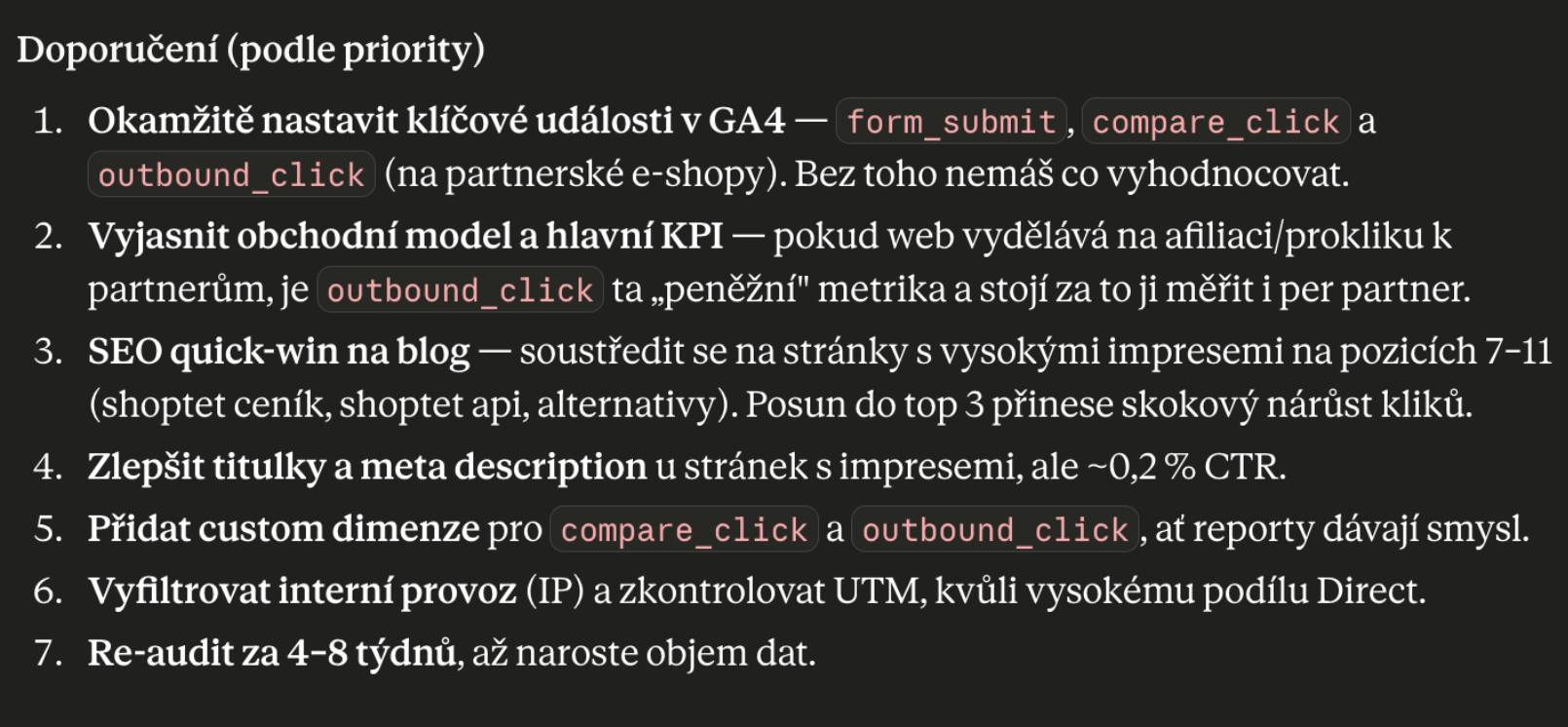
A typical audit output: Claude pulled the data from GA4 and Search Console on its own and sorted the recommendations by priority.
The brief was "run an audit of traffic and monetization". Claude pulled the property overview from GA4, then channels and conversions, then queries and pages from Search Console – and came back with a prioritized list. At the top, configuration debt: the key events form_submit, compare_click and outbound_click aren't marked as such in GA4, so the very thing the site exists for isn't being measured. Right behind it, something the AI can't solve – clarifying the business model and KPIs, because without them it has nothing to sort by.
Below that, the concrete work: an SEO quick win on pages that collect a lot of impressions at positions 7–11 (just beyond the point where people stop scrolling), rewriting titles and meta descriptions on pages with a click-through rate of around 0.2%, adding custom dimensions and filtering out internal traffic – the share of direct traffic was so high that it was almost certainly the team itself. And at the end, a deadline: a re-audit in four to eight weeks.
RFM segmentation as an interactive dashboard
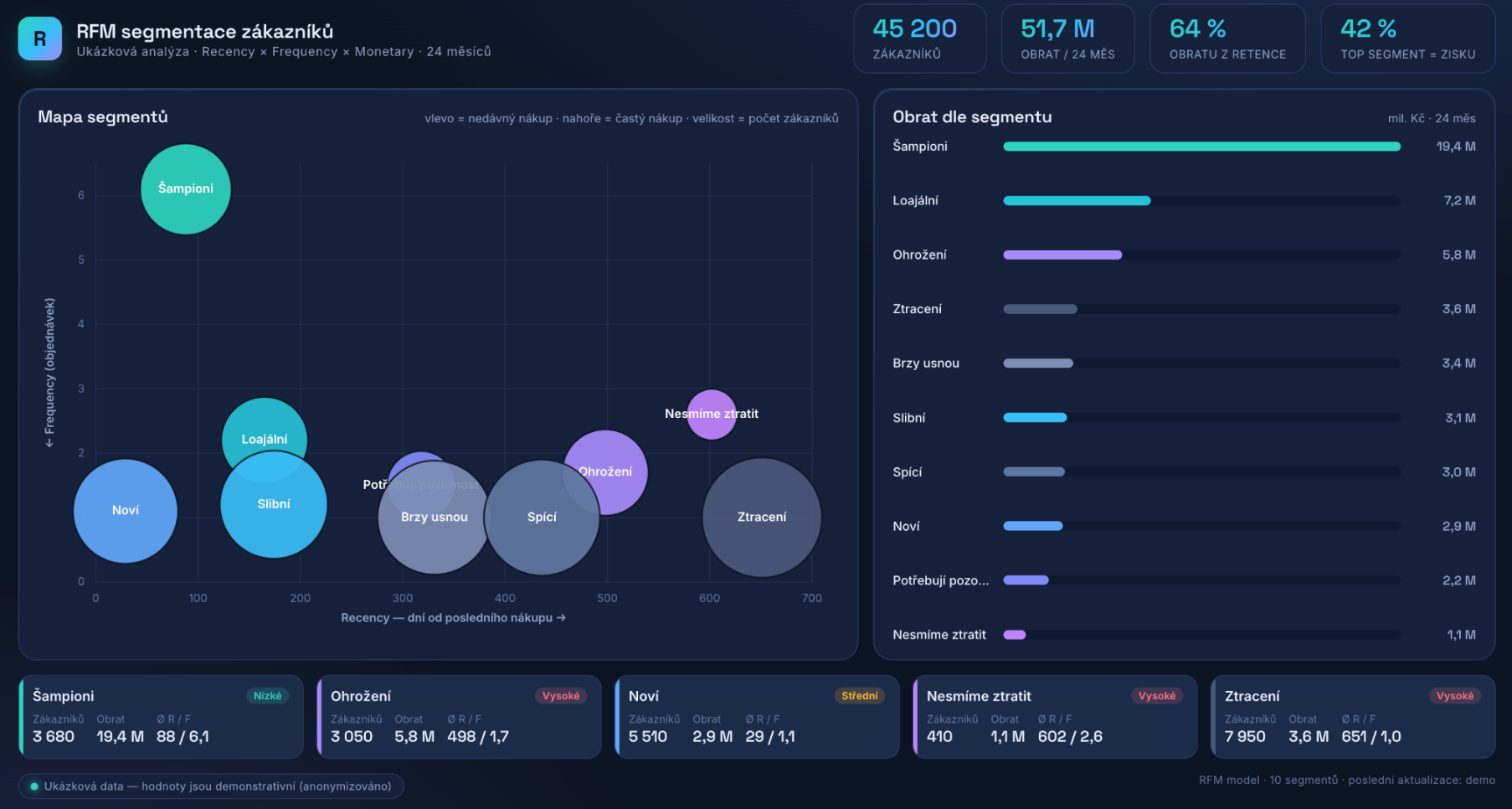
RFM segmentation over 24 months as a dashboard the AI built itself. Sample anonymized data.
This is the moment when the whole thing clicks for most people. The request was "split the customers by RFM over the last 24 months". Claude pulled the data, calculated the scores for Recency, Frequency and Monetary and, instead of a long table in the chat, built an interactive dashboard you open in your browser: a segment map (Champions, Loyal, Promising, New, At Risk, Can't Lose Them, Lost), revenue by segment and churn risk.
So the AI can do more than answer a question. It can build a tool or a report that you then use over and over – one that somebody would otherwise have had to code for you.
Search Console as fuel for an autonomous agent
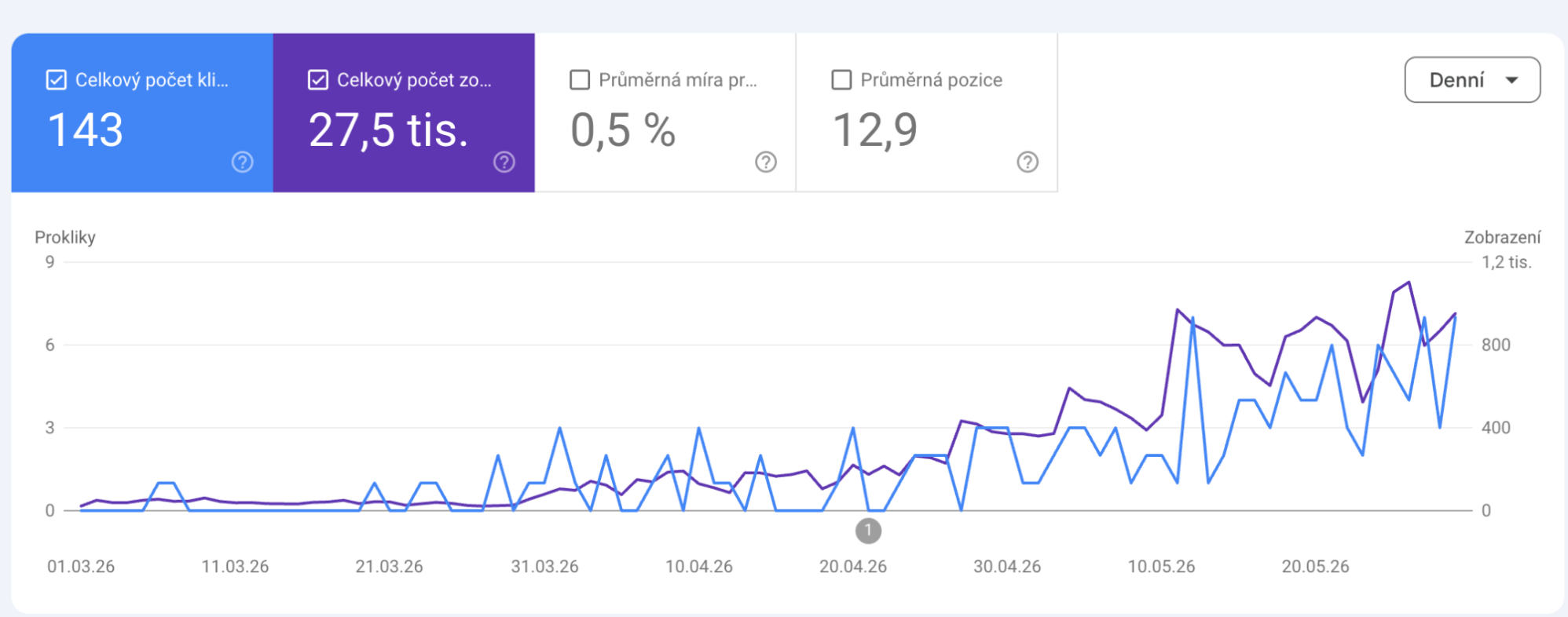
Search Console for the EshopRadar.cz project, March–May 2026: 143 clicks and 27.5k impressions over the period.
This isn't an example of a single query, it's four months of operation. On EshopRadar.cz we let an AI agent run the site, and Search Console over MCP was its main source of data: it took its diagnosis from there, planned sprints by it and measured the result on it. Clicks and impressions grew from zero to hundreds of impressions a day – 143 clicks and 27.5k impressions over the period tracked.
We described the whole experiment, including what didn't work, in We let an AI agent run a website for four months.
What you'll need
- A Google account with access to the GA4 property and the Search Console property you want to read. No access in the browser means no access through the API either.
- A Google Cloud project. It only serves as a holder for the APIs and the credentials. Both APIs are free, you don't have to set up billing.
- Python. The GA4 server needs Python 3.10 or newer, the Search Console server 3.11 or newer.
- pipx (for the GA4 server) and uv/uvx (for the Search Console server).
- The gcloud CLI – for signing in to GA4 through Application Default Credentials.
- Claude Desktop, or Claude Code. Both servers run locally as a process on your computer; you won't get them working in the claude.ai web interface.
- 30–45 minutes. Most of that goes on clicking around the Google Cloud Console, not on the install.
The fastest route: let Claude Code set it up
If you already have Claude Code, you don't have to do any of the following by hand. Give it this prompt:
Set up two MCP servers for Claude following these guides:
- GA4: https://github.com/googleanalytics/google-analytics-mcp
- Search Console: https://github.com/AminForou/mcp-gsc

Read both READMEs, run the installation and write the configuration.
For the steps I have to do manually in the browser (Google Cloud Console –
enabling the APIs, OAuth/credentials, gcloud sign-in), walk me through them
step by step and wait for me. At the end, verify it works by asking for
a list of my GA4 accounts and GSC properties.
Claude Code downloads and reads both READMEs, installs whatever is missing, writes the configuration, and for the steps you have to click through in the browser it guides you and waits for you – it will say "now open this page, enable this API, download the JSON and tell me the path to it". At the end it verifies that the servers respond.
The rest of the article is for those who want to understand what's going on – or who use Claude Desktop, where this shortcut doesn't work.
The manual setup, step by step
The Google Cloud project and enabling the APIs
In the Google Cloud Console, create a project (or use an existing one) and enable three APIs in it:
- Google Analytics Admin API (
analyticsadmin.googleapis.com) – the list of accounts and properties, metadata - Google Analytics Data API (
analyticsdata.googleapis.com) – custom reports - Google Search Console API (
searchconsole.googleapis.com)
The first two are needed by the GA4 server, the third by the Search Console server. If you forget to enable one, you won't notice straight away – it only shows up on your first query, as an error along the lines of "API has not been used in project … before or it is disabled".
The GA4 server: install, sign-in, configuration
The google-analytics-mcp server is published and maintained by Google itself (Apache-2.0), and the README labels it experimental. The recommended install tool is pipx.
Sign-in goes through Application Default Credentials and has to include the read-only scope for Analytics. Here's the procedure from the README, the variant with user credentials and your own OAuth client:
gcloud auth application-default login \
  --scopes https://www.googleapis.com/auth/analytics.readonly,https://www.googleapis.com/auth/cloud-platform \
  --client-id-file=YOUR_CLIENT_JSON_FILE
Alternatively, through service account impersonation:
gcloud auth application-default login \
  --impersonate-service-account=SERVICE_ACCOUNT_EMAIL \
  --scopes=https://www.googleapis.com/auth/analytics.readonly,https://www.googleapis.com/auth/cloud-platform
Once the command finishes, note down the file path that gcloud prints (Credentials saved to file: …). You'll need it in the very next step.
Writing it into Claude Code (the command is verbatim from the README):
claude mcp add analytics-mcp \
  --scope user \
  -e "GOOGLE_APPLICATION_CREDENTIALS=PATH_TO_CREDENTIALS_JSON" \
  -e "GOOGLE_PROJECT_ID=YOUR_PROJECT_ID" \
  -- pipx run analytics-mcp
--scope user means "in all of my projects". The two dashes before the command are mandatory – they separate Claude Code's own options from the command that is to be run.
For Claude Desktop the README gives no example, but the format is the same as for other clients. On macOS you'll find the file at ~/Library/Application Support/Claude/claude_desktop_config.json, on Windows at %APPDATA%\Claude\claude_desktop_config.json. The derived configuration looks like this:
{
  "mcpServers": {
    "analytics-mcp": {
      "command": "/FULL/PATH/TO/pipx",
      "args": ["run", "analytics-mcp"],
      "env": {
        "GOOGLE_APPLICATION_CREDENTIALS": "/full/path/to/application_default_credentials.json",
        "GOOGLE_CLOUD_PROJECT": "your-project-id"
      }
    }
  }
}
A note on the variable name. In the GA4 server's README the text and the examples disagree: the text recommends GOOGLE_CLOUD_PROJECT, while the examples and the Claude Code command use GOOGLE_PROJECT_ID. The server's code, meanwhile, reads neither of them – it relies on the google-auth library, which knows GOOGLE_APPLICATION_CREDENTIALS and, as the quota project, GOOGLE_CLOUD_PROJECT. GOOGLE_PROJECT_ID isn't a standard variable at all. The practical takeaway: the safe bet is GOOGLE_CLOUD_PROJECT, and if your server runs with GOOGLE_PROJECT_ID (ours at the agency does), it's because the project gets taken from the credentials anyway.
What the server can do – the list comes from the code, the README is two tools behind:
| Tool | What it does | Reads / writes |
|---|---|---|
get_account_summaries |
An overview of the accounts and properties you have access to. | reads |
get_property_details |
The details of a single GA4 property. | reads |
list_google_ads_links |
The property's links to Google Ads accounts. | reads |
list_property_annotations |
Property annotations – notes on the data and on time periods. | reads |
get_custom_dimensions_and_metrics |
The property's custom dimensions and metrics. | reads |
run_report |
A standard report: dimensions, metrics, date range, filters, sorting. | reads |
run_realtime_report |
A realtime report (without custom metrics). | reads |
run_funnel_report |
A funnel: steps, segments, drop-off. | reads |
run_conversions_report |
Conversions, ad spend, ROAS and the attribution model. | reads |
All nine tools only read. The server asks for nothing beyond the read-only scope, so even if something abused it, Google would refuse the write.
The Search Console server: OAuth, or a service account
The mcp-gsc server is a community project by Amin Foroutan (MIT), not a Google product. On PyPI the package is called mcp-search-console. The recommended install is through uv:
# 1. Download and install
curl -LsSf https://astral.sh/uv/install.sh | sh

# 2. Activate it in the current terminal window
source $HOME/.local/bin/env

# 3. Make it permanent for all the others
echo 'source $HOME/.local/bin/env' >> ~/.zshrc
There are two ways to sign in:
- An OAuth desktop client (recommended). In the Google Cloud Console you go to Credentials → Create Credentials → OAuth client ID, set up the consent screen, choose the Desktop app type and download the JSON. The first time you use it a browser opens, you sign in with your account, and that's it – the token is saved and you're not asked again. The server then sees exactly what you see. This is what you want when you're analyzing your own sites.
- A service account. You create a service account, generate a JSON key – and above all: you have to add the service account's email to the Search Console property by hand (Settings → Users and permissions → Add user; the README specifies the Full access level). This is the step people trip over most often. It makes sense for servers and automations where nobody can click through OAuth in a browser.
The server is driven by environment variables:
| Variable | When | What it does |
|---|---|---|
GSC_OAUTH_CLIENT_SECRETS_FILE |
OAuth | The absolute path to the JSON with the OAuth client. Always mandatory when using uvx. |
GSC_CREDENTIALS_PATH |
Service account | The absolute path to the service account's JSON key. |
GSC_SKIP_OAUTH |
optional | "true" forces the service account and skips OAuth entirely. |
GSC_DATA_STATE |
optional | "all" (the default) matches what you see in the GSC interface. "final" returns, according to the server's documentation, only confirmed data with a two to three day delay. |
GSC_ALLOW_DESTRUCTIVE |
optional | "true" unlocks the tools for adding and removing a property and for deleting a sitemap. |
The configuration for Claude Desktop (verbatim from the README, the OAuth variant):
{
  "mcpServers": {
    "gscServer": {
      "command": "/FULL/PATH/TO/uvx",
      "args": ["mcp-search-console"],
      "env": {
        "GSC_OAUTH_CLIENT_SECRETS_FILE": "/full/path/to/client_secrets.json"
      }
    }
  }
}
That absolute path to uvx isn't there by mistake. Apps with a graphical interface aren't launched through a shell, so they know nothing about your ~/.zshrc or your ~/.local/bin. If you write just uvx in the configuration, you get a spawn uvx ENOENT error. You'll find the path with which uvx (on Windows Get-Command uvx | Select-Object -ExpandProperty Source). At our agency it's a Homebrew install, so the resulting entry in the Claude Code configuration looks like this: the command /opt/homebrew/bin/uvx mcp-search-console, and the GSC_OAUTH_CLIENT_SECRETS_FILE variable with the path to the OAuth JSON downloaded from the Google Cloud Console. Nothing more.
The README gives no command for Claude Code; the equivalent below is derived, but it works:
claude mcp add gscServer \
  --scope user \
  -e "GSC_OAUTH_CLIENT_SECRETS_FILE=/full/path/to/client_secrets.json" \
  -e "GSC_DATA_STATE=all" \
  -- /Users/YOUR_NAME/.local/bin/uvx mcp-search-console
The server's tools (the complete list is in the code, the README lists fewer):
| Tool | What it does | Reads / writes |
|---|---|---|
get_capabilities |
Lists the available tools and the sign-in status. A good first question when something goes wrong. | reads |
list_properties |
The list of properties in exactly the form the other tools expect. | reads |
get_site_details |
The verification and ownership of a single property. | reads |
get_search_analytics |
Top queries and pages: clicks, impressions, CTR, position. | reads |
get_performance_overview |
A summary of the property's performance over a period. | reads |
compare_search_periods |
A comparison of two periods against each other. | reads |
get_search_by_page_query |
The queries that bring people to a specific page. | reads |
get_advanced_search_analytics |
Filters (country, device, query, page), search type, sorting and pagination for large selections. | reads |
inspect_url_enhanced |
The crawl, indexing and rich results status of a single URL. | reads |
batch_url_inspection |
Inspection of up to ten URLs at once. | reads |
check_indexing_issues |
Checks several URLs for indexing problems. | reads |
get_sitemaps, list_sitemaps_enhanced, get_sitemap_details |
Sitemaps: the list, the details, errors and warnings. | reads |
submit_sitemap, manage_sitemaps |
Submitting or resubmitting a sitemap to Google. | writes |
add_site, delete_site, delete_sitemap |
Adding and removing a property, deleting a sitemap. Disabled until you turn on GSC_ALLOW_DESTRUCTIVE. |
writes |
reauthenticate |
Deletes the saved token and starts a new sign-in – for switching accounts. | changes the local token |
Checking that it works
After every configuration change, quit the app completely and start it again – in Claude Desktop closing the window isn't enough, it has to be Cmd+Q. In Claude Code the /mcp command or claude mcp list will show the state of the servers.
Then ask two questions:
- "List my Google Analytics accounts and properties."
- "Which Search Console properties can you see?"
If the lists come back, you're done. If they don't, ask "call get_capabilities" – the Search Console server will print the exact sign-in status and the error. With the GA4 server the cause is usually an unfinished ADC sign-in, an API that was never enabled, or a wrong path to the binary in the configuration.
If you already have both servers set up in Claude Desktop and want them in Claude Code too, there's a shortcut: claude mcp add-from-claude-desktop (macOS and WSL).
What to watch out for
- The Search Console server takes read/write permissions. It signs in with the
webmastersscope, which Google's documentation describes as "read/write access"; it doesn't offer a read-only variant at all. The only safeguard is in the application, not at the level of Google's permissions. - And that safeguard doesn't cover everything.
GSC_ALLOW_DESTRUCTIVEprotects adding and removing a property and deleting a sitemap. Submitting a sitemap is not protected – we verified that in the source code, and the README doesn't mention it. In practice it means that even with the default settings an assistant can push a sitemap into a production property. It isn't destructive, but it is a write into Google without your explicit consent. - The GA4 server is toothless by comparison, and that's a good thing. A read-only scope, nine tools, and none of them changes anything.
- Quotas. Both APIs are free, but they have limits. The Data API in GA4 doesn't count queries, it counts tokens – one complex query with many dimensions burns more than ten trivial ones; the tools can also return the current quota status, so when something "breaks", you can simply ask. With Search Console the only real ceiling is URL inspection, which you can hit when batch-checking a large site.
- Fresh data isn't complete. In its default mode Search Console returns the same thing as the dashboard, including the most recent days that haven't been fully counted yet; the
finalmode returns, according to the server's documentation, only confirmed data with a two to three day delay. GA4 processes data gradually, so the same report can change within a few minutes. Don't draw conclusions from the last two days. - Windows and Claude Desktop from the Microsoft Store. The Edit Config button opens the configuration in
AppData\Roaming\Claude, but the app installed as an MSIX reads the file somewhere else – inAppData\Local\Packages\…\LocalCache\Roaming\Claude. The symptom is sneaky: you save the configuration, restart, and the servers quietly fail to load, with no error message. - The AI doesn't know your business context. It doesn't know that half of the direct traffic is you and your team, that one campaign was a test, or what counts as a conversion for you. It will read the data correctly and draw its conclusions from what you tell it. Spend the first five minutes of every audit explaining what you sell and what success means to you.
How we use it: an audit with a memory
A one-off audit is nice, but the value is in the repetition. That's why at our agency audits don't run as a chat but as a process with a written record.
In the site's repo we have an audit/ folder with one file per audit, named by date: 2026-09-16-audit.md. Each one contains four things – baseline metrics from both GA4 and Search Console, findings, recommendations with a status (done / pending / rejected and why) and a "what to watch next time" section.
There are three rules, and they hold the whole process together:
- The agent reads the last audit first, and only then pulls fresh data – and compares it against the baseline, not against a gut feeling.
- Done and rejected items are not revisited. Without this, the AI will enthusiastically propose the same thing every month that you rejected six months ago.
- Nothing changes without a human's approval. An audit is a proposal, not a deployment.
A side effect: after the third audit you have a history of decisions that both a human and a machine can read.
Prompts that have worked well for us
- "Compare the last 28 days with the previous period of the same length. What dropped the most, and on which pages?"
- "Find pages with high impressions and a low CTR. For the five worst, suggest a new title and meta description."
- "Which queries sit at positions 5 to 15 and have enough impressions to be worth pushing higher?"
- "Break traffic and conversions in GA4 down by channel for the last quarter. Which channel's performance got worse?"
- "Which landing pages bring in the people who submit the form? Sort them by count."
- "Check for cannibalization: are there queries where several of our pages rank at the same time? Recommend which one to keep."
- "Check the indexing of these new URLs and tell me what's stopping them from being indexed."
- "Combine the GA4 and Search Console data: for the five pages with the biggest drop in clicks, compare position, CTR and visitor behavior."
The last one is the kind of question that makes this whole thing worth it – with two browser windows open you'd be piecing it together for half an hour.
Who it's for and where the limits are
It makes sense for anyone who looks at the numbers regularly and currently loses time on exports doing it: an online store owner, a marketer, an in-house SEO. The setup is within reach of a technically capable non-developer who isn't afraid of a terminal – and it's also the hardest part, because after that you're just asking questions.
What the AI won't do:
- It won't decide for you. It will sift the options and rank them, but which segment you really want to serve, and what counts as strategy for the company, stays with you.
- It doesn't know your business. Margins, seasonality, a campaign that was only a test, internal traffic – you have to tell it all of that.
- It won't guarantee that the numbers make sense. When the measurement is broken, the AI will happily produce a confident conclusion from broken data. That's why the first item in our audits is almost always the measurement setup, not the content.
Don't want to set this up yourself? We'll set up and run a ready-made MCP connector for GA4, Search Console and GTM for you. It runs on our server, so it works in Claude on the web, in the desktop app and on mobile, it adds Tag Manager and it's read-only. It costs €20 excl. VAT a month and the first month is free.
At our agency this setup is a standard part of AI training and consultations – we configure it directly on the real data from your site, go through the first audit together, and you leave with a set of questions that make sense for you specifically. And when you want to go further than a chat can reach – your own agents, automated reports, connections to other systems – we build custom AI solutions.