


 AI at the helm
TL;DR: On 29 July 2026, Shoptet, the Czech e-commerce platform, launched its own Shoptet MCP – a hosted server at https://mcp.shoptet.com/mcp that connects an AI assistant straight to your online store's admin. It's only for Shoptet Premium, and there it's free. You install an add-on, paste the address into your AI tool and sign in over OAuth – done in a few minutes. The AI can then read your store's data and make limited writes (order status, stock movements, coupons, product copy, blog articles); deleting and bulk changes are deliberately out of reach. Our earlier open-source read-only MCP server lost its purpose with that – for a new deployment we recommend the official solution.
What has changed since June
In June this article was about something else: it described our own open-source MCP server for Shoptet Premium. It was deliberately read-only (the HTTP client refused any method other than GET), it authenticated with a private API token from the admin, it ran locally over stdio, and deploying it meant git clone, npm install and writing the path into the client's configuration by hand. For its time that made sense – there was practically no other workable way to get Shoptet data into an AI assistant.
Since 29 July 2026 Shoptet has had an official hosted MCP server (shoptetpremium.cz/mcp). The difference is fundamental on three counts:
- You install nothing and build nothing. The server runs at Shoptet; you only paste the address into your AI tool.
- You sign in over OAuth, not with an API token – and your credentials stay with Shoptet.
- It can write too, within a precisely defined scope. Our server could only read.
We're keeping the repository public under the MIT license as a reference – the code is still useful if you want to see how an MCP server over the Shoptet API is built, or if you need something the official solution doesn't cover. For an ordinary deployment, though, there's no reason to reach for it. The official MCP is more convenient, broader, and Shoptet maintains it.
What MCP is
MCP (Model Context Protocol) is an open standard from Anthropic that works as a universal connector between an AI model and your systems. Without it, AI only knows what you type into the chat yourself. With an MCP server, the assistant finds out which tools it has available, pulls current data on its own, and on your instruction calls a permitted operation. Shoptet describes it the same way: when you give the assistant a task in plain language, it turns it into one or more structured requests, Shoptet verifies them, performs the supported operation and returns the result into the conversation.
What Shoptet MCP can do
According to Shoptet's help center, MCP handles the following:
- searching orders, viewing their details and supported order management,
- searching products and editing their data,
- checking current stock, stock movements and products that are running low,
- searching customers, viewing their details and editing their data,
- viewing product categories, creating new categories and editing them,
- checking and supported editing of price lists, shipping methods and payment methods,
- searching invoices and delivery notes,
- viewing active discount coupons and creating new ones from existing templates,
- creating and publishing blog articles,
- reading and moderating product reviews.
The most accurate picture of where the line between reading and writing runs comes from the consent screen you see when signing in. Shoptet lists two groups of permissions there: reading the store's data – orders, stock, products, coupon templates, the blog – and limited writes – changing an order's status, stock movements, creating coupons, editing product copy, blog articles.
The word "limited" belongs there. Deleting and bulk changes are not available through Shoptet MCP, and that's deliberate. An irreversible operation that AI could trigger by mistake simply isn't on the menu. On top of that, the set of tools differs depending on the store you connect and on what you allow during authorization.
What does it look like in practice? A few prompts that make sense right after you connect:
- "Show me unpaid orders created in the last seven days."
- "Which orders are stuck waiting to be processed?"
- "What will run out of stock before the weekend? Find products with fewer than five units in stock."
- "Which product's sales dropped compared with last month?"
- "Find all orders from customer John Smith."
- "Prepare a discount coupon for the VIP customer group."
- "Edit the description on these three products so they fit the new campaign."
- "Draft a blog article, but don't publish it yet."
The first four are reads, the last four writes. And the difference between them is exactly what's worth sorting out before you switch the connection on – we'll get to that in the section on security.
How to connect Shoptet MCP
The process always has three steps, whichever assistant you use:
- Install the Shoptet MCP add-on in your admin (doplnky.shoptet.cz/mcp).
- Add the address
https://mcp.shoptet.com/mcpto your AI client as a remote MCP server. - Complete the OAuth sign-in and pick the tools the client is allowed to use.
You sign in with the email and password for your store's admin, on a Shoptet-branded page. The AI tool never gets to those credentials – it only gets a temporary connection token.
Claude.ai
In an individual account, open Customize → Connectors, click + and choose Add custom connector. Enter a name such as "Shoptet MCP", paste https://mcp.shoptet.com/mcp into the address field, click Add and then Connect. All that's left is to finish the authorization and allow the tools you want. In a specific conversation you then switch the connector on with the + → Connectors button at the bottom left of the chat.
On the Claude Team and Enterprise plans, a custom connector has to be added first by the organization owner in Organization settings → Connectors; other users then connect it for themselves in Customize → Connectors.
ChatGPT
This is the most limited option so far. According to Shoptet's help center, the connection is available only in the web version of ChatGPT, through Developer mode – custom MCP apps aren't in the desktop version or the mobile app. Full MCP support, including tools that edit data, is available in beta on the Business, Enterprise and Edu plans; on the Pro plan a custom MCP can only be used to read and search data. (That beta is on OpenAI's side, not Shoptet's.)
How to do it: in Settings → Apps → Advanced Settings turn on Developer mode (in a company workspace an admin has to allow it), then go to Settings → Apps → Create, enter the app's name and the server address, choose OAuth as the sign-in method and click Scan Tools. After the authorization, check the tools that loaded, confirm with Create, and in a new conversation pick the app from the tools menu.
Claude Code
The fastest option. In the terminal:
claude mcp add --transport http --scope user shoptet https://mcp.shoptet.com/mcp
Then start Claude Code, type /mcp, select the shoptet server from the menu and start the sign-in. You finish the authorization in your browser and allow the tools you want. The --scope user option makes the connection available in all your local projects – if you only want it in the current project, leave the parameter out.
Codex
Much the same from the terminal:
codex mcp add shoptet --url https://mcp.shoptet.com/mcp
codex mcp login shoptet
An authorization page opens in your browser, you sign in and allow only the tools you want to use in Codex. You can verify the connection with codex mcp list, and inside Codex with /mcp.
Other clients
Shoptet says MCP works with any AI tool that supports remote MCP servers and OAuth authorization – it names Cursor, Gemini and Copilot, for example. It has no documented procedure for them, but the principle is the same: the server address and the OAuth authorization don't change, only the screen you paste the address into.
Security and what to watch out for
Technically the connection is built on OAuth 2.1 with PKCE. The server distinguishes two permission scopes – shoptet:read and shoptet:write – and during the authorization you choose which tools the client may use. According to Shoptet, individual permissions can be narrowed or revoked later. Your credentials stay with Shoptet and the AI only sees a temporary token.
Incidentally, this is exactly why Shoptet used to advise against unofficial MCP solutions: they worked with a username and password, which goes against its terms of service. The official MCP removed that problem. (Our open-source server never had it – it used the private API token that Shoptet Premium issues officially – but the hosted solution with OAuth is more convenient and broader anyway.)
What we'd recommend from experience:
- Start with reading only. During the authorization, allow the tools for queries and leave writes switched off. Spend a few days getting a feel for how the assistant responds to questions and whether its answers match what you see in the admin.
- Add writes gradually and start where a fix is cheap – product copy or blog drafts, say, not order statuses.
- Read what it's about to do. Shoptet puts it bluntly: "Before confirming a change, always check the requested operation and its parameters. Depending on the permissions granted, the AI assistant can not only read but also edit your store's data." Whether the assistant asks you before every write depends on how you have that particular client set up – not on Shoptet.
- Treat it as a safety net, not a guarantee, that deleting and bulk changes aren't on offer. It means nothing can be deleted for good. It doesn't mean nothing can go wrong.
How I use it
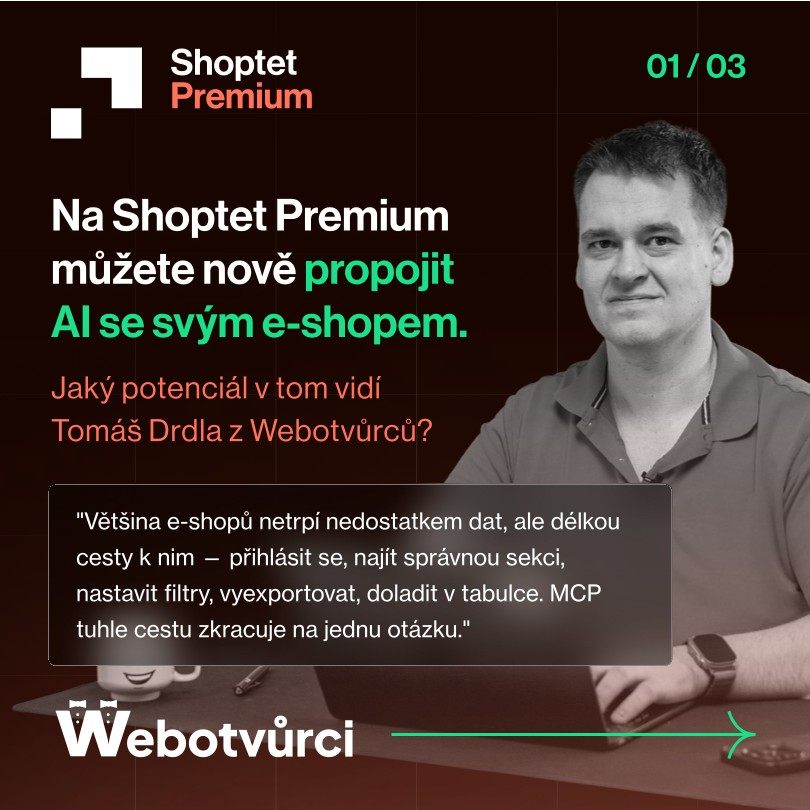
A Shoptet Premium piece from LinkedIn in which I commented on MCP.
Shoptet Premium asked me to say a few words about MCP from the perspective of a partner who actually uses it. This is how I put it, and I still stand behind it:
"Most online stores don't suffer from a lack of data, but from the length of the road to it – sign in, find the right section, set the filters, export, tidy it up in a spreadsheet. MCP shortens that road to a single question."
In practice it works out as a morning ritual for me:
"In the morning I ask Claude which orders are stuck, what will run out of stock before the weekend, or which product's sales have dropped – and I don't just get a list, but the context too and a suggestion of what to do about it. The clicking is gone, the decision stays with me, because nothing changes in the store without my instruction."
With writes, that matters all the more. When AI writes and publishes a blog article or fixes a typo in an older text, it saves fifteen minutes of clicking. But the decision that the article should be published, and what should be in it, is still mine. AI is a fast pair of hands, not the boss.
And the last thing I hear most often – that it's complicated to set up:
"Anyone at all can set it up in a moment: install the add-on, paste the address into your AI tool and sign in. It takes a while to get used to asking precisely, but that investment pays for itself within a few days."
Take the second half of that sentence seriously. The technical setup really is a five-minute job. What takes longer is learning to phrase a task so the answer is usable – with a time range, with what the output should contain, and with whether the assistant should only suggest something or go ahead and do it.
Who it's for and where to go next
Shoptet MCP is available exclusively to online stores on Shoptet Premium and it's free for them (all you need is an account with a compatible AI tool, where your costs follow that tool's own plan). On regular Shoptet plans the feature isn't there. If that's where you are and MCP is an argument for you, our article on when to switch to Shoptet Premium comes in handy – and as a Premium Partner we'll help you with the switch to Premium itself.
MCP isn't just Shoptet, either. You connect traffic and search data to AI the same way – we described it in our article on how to connect Claude to Google Analytics and Search Console. Put your store data next to your search data and it starts to get really interesting.
And if you want to pick up the setup, and above all the way of working with an assistant, faster, I run the AI training personally – we'll go through Shoptet MCP on your own store's data, including which tools to allow and how to phrase your prompts. When you need to go further than a conversation in a chat – your own agents, automations, connections to other systems – we build custom AI solutions and add-ons for Shoptet.