


The Product Bundles add-on comes straight from Shoptet and lets online stores build — as the name suggests — bundles out of the individual products they already sell.
On top of adding every item to the cart when a customer orders the bundle, you can set a price for each bundle that doesn't have to follow the prices of the individual items. Your stock stays accurate too, because the units of the separate products in the bundle are deducted.
For the basics of building bundles, use Shoptet's own documentation — it walks you through creating bundles by hand in the admin. Take that route if you have roughly up to 30 bundles to create (or as many as your carpal tunnels allow). You can make the manual work easier: build one bundle, copy it with the Copy button and change only the data you need on each copy — codes, bundle items, parameters, prices and so on.
The add-on does have one limitation: it can't work with product variants. So if you sell clothing, for example, you can only ever put one specific variant of each product into a bundle. Building bundles by hand then gets very slow once the products have a lot of variants.
To make your life easier, we've put together a guide to creating bundles in bulk through imports — together with a Google Sheets script that calculates every combination you need automatically.
Video
Preparing products for bundles
Before you start building bundles, make sure that every product you include:
- Is available in the same warehouse.
- Has the same visibility and availability.
Product visibility and availability carry over automatically to the bundles you create. So if you want a bundle to be visible and available to buy, the individual products inside it have to be set up that way too.
Creating the first bundle
Start by creating a single bundle in your online store (you'll find the steps in the Product Bundles add-on guide) that will serve as a template for the rest. When you build it:
- Use generic texts so they work for the other combinations too.
- Pick images that can be reused across the other bundles (or add them later).
Then download an export that includes your sample bundle. The export should contain every column relevant for building the import file. The required columns are:
codepairCodenameprice
The other columns depend on your store and on the product itself (categories, descriptions, meta descriptions, seotitle, parameters and so on), but we recommend avoiding these: atypicalShipping, atypicalBilling, adult.
If you leave them in the export with the value 0, the import automatically switches on the flag for atypical shipping, atypical billing or the "adult" label. That can make the product unavailable for sale and force you into extra fixes. If you don't need these parameters, leave them empty or remove the columns from the import entirely.
We also don't recommend exporting the stock quantity columns — bundle stock is calculated automatically from the stock of the individual components.
Combining
The next step is to plan which bundles you want to sell. You can calculate the total number of bundles by multiplying the number of variants of each product.
Example — a gift package for different members of the family
We have three product categories:
- Mugs (4 types)
- For grandma → code
01111 - For grandpa → code
044440 - For dad → code
02222 - For mom → code
03300300.0
- For grandma → code
- Snacks (2 types)
- Savory snack →
SNACK01 - Sweet snack →
SNACK02
- Savory snack →
- Wine (2 kinds)
- White wine →
BIL100 - Red wine →
CER200
- White wine →
The number of possible bundles works out as: 4 mugs × 2 snacks × 2 wines = 16 different bundles
How to write the combinations down clearly. The best way is to use a spreadsheet editor. In it you can:
- write out the product combinations together with their codes,
- create unique codes for the bundles, for example by combining text and product codes,
- use abbreviations for individual items so everything stays readable.
If you'd rather not build the combinations by hand, use our Google Sheets script, which generates them for you.
Google Sheets script
The script is available only for Google Sheets (not for Microsoft Excel).
Setting up the spreadsheet:
- Create a new file in Google Sheets (it must not be an
.xlsxfile or anything other than a Google Sheets document) - Rename the first sheet to "Bundle items"
- Fill in the product variants starting from row 1 — alternate the columns: name and code
Structure:
| Column | Content |
|---|---|
| A | Name of product 1 variant |
| B | Code of product 1 variant |
| C | Name of product 2 variant |
| D | Code of product 2 variant |
| E | Name of product 3 variant |
| F | Code of product 3 variant |
| G | Name of product 4 variant |
| H | Code of product 4 variant |
| I | Name of product 5 variant |
| J | Code of product 5 variant |
A filled-in spreadsheet then looks something like this:
| A | B | C | D | E | F |
|---|---|---|---|---|---|
| Mug for grandma | 01111 | savory | SNACK01 | white wine | BIL100 |
| Mug for grandpa | 044440 | sweet | SNACK02 | red wine | CER200 |
| Mug for dad | 02222 | ||||
| Mug for mom | 03300300.0 |
Inserting the script:
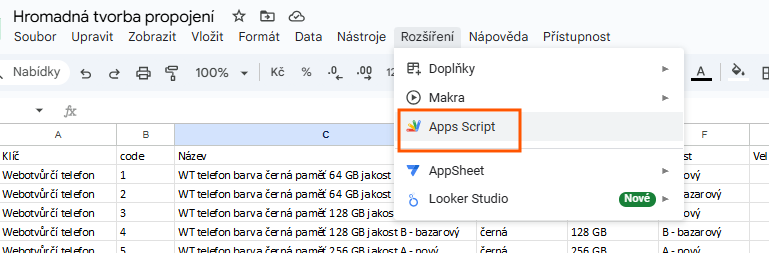
Go to Extensions → Apps Script
Careful: the file has to be a Google Sheets document — with
.xlsxand similar formats the Extensions menu doesn't show up at all.
- Paste in the JavaScript code below
- Click Save
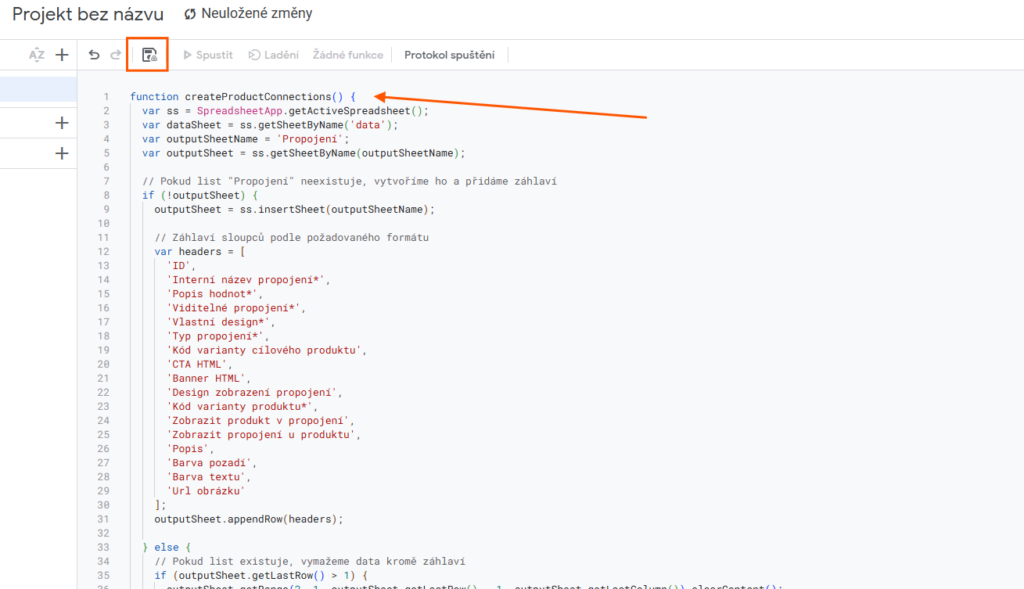
- Run the
generateCombinations()function
Code for building the combinations:
function generateCombinations() {
  var ss = SpreadsheetApp.getActiveSpreadsheet();
  var sheet = ss.getActiveSheet();

  var lastRow = sheet.getLastRow();
  var lastColumn = sheet.getLastColumn();

  if (lastRow < 1) {
    SpreadsheetApp.getUi().alert("Ve zdrojovém listu nejsou žádná data.");
    return;
  }

  var data = sheet.getRange(1, 1, lastRow, lastColumn).getDisplayValues();
  var columns = [];

  for (var col = 0; col < lastColumn; col += 2) {
    var items = [];
    for (var row = 0; row < lastRow; row++) {
      var name = data[row][col] || "";
      var code = (col + 1 < lastColumn) ? data[row][col + 1] : "";
      if (name.trim()) {
        items.push([name, code]);
      }
    }
    if (items.length > 0) {
      columns.push(items);
    }
  }

  if (columns.length === 0) {
    SpreadsheetApp.getUi().alert("Nebyla nalezena žádná data pro generování kombinací.");
    return;
  }

  var combinations = generateCombinationsRecursive(columns, 0, []);

  var now = new Date();
  var timestamp = Utilities.formatDate(now, "Europe/Prague", "dd.MM.yyyy HH:mm");
  var newSheetName = "Kombinace " + timestamp;
  var newSheet = ss.insertSheet(newSheetName);

  var headers = [];
  for (var i = 0; i < columns.length; i++) {
    headers.push("POLOŽKA " + (i + 1) + " název varianty");
    headers.push("POLOŽKA " + (i + 1) + " kód produktu ve variantě");
  }

  newSheet.getRange(1, 1, 1, headers.length).setValues([headers]);

  if (combinations.length > 0) {
    newSheet.getRange(2, 1, combinations.length, headers.length).setNumberFormat("@");
    newSheet.getRange(2, 1, combinations.length, headers.length).setValues(combinations);
  } else {
    SpreadsheetApp.getUi().alert("Nebyly nalezeny žádné kombinace.");
  }

  SpreadsheetApp.getUi().alert("Všechny kombinace byly úspěšně vygenerovány do listu: " + newSheetName);
}

function generateCombinationsRecursive(columns, index, currentCombination) {
  if (index === columns.length) {
    return [currentCombination];
  }

  var result = [];
  var currentColumn = columns[index];

  for (var i = 0; i < currentColumn.length; i++) {
    var newCombination = currentCombination.concat(currentColumn[i]);
    var deeper = generateCombinationsRecursive(columns, index + 1, newCombination);
    result = result.concat(deeper);
  }

  return result;
}
Before you run the script, check one last time that the data in the "Bundle items" sheet is filled in correctly and that you're actually standing on that sheet — the script works on the active sheet.
After you run the script:
- Google asks you for permission the first time you run it.
- A warning about an unknown app may appear — you have to accept it for the script to run.
- Once it finishes, go back to the sheet; a dialog pops up telling you the combinations sheet was created successfully.
The script creates a new sheet named "Kombinace DATE TIME" (the name is hard-coded in the script, so it stays Czech), where you'll see every bundle combination you need, including the products each one is made of.
Creating bundle codes
In the combinations sheet it's worth creating unique codes for the individual bundles right away. Use the CONCATENATE function:
=CONCATENATE("SADA";B2;D2)
The formula builds a code in the format SADA + the code of the first product + the code of the second product.
What to watch out for when creating codes:
- Don't use diacritics — the letter Š, for example, could turn into S or some other unwanted character.
- Avoid special characters such as
+,&,/— they can cause errors when importing into Shoptet. - If Shoptet doesn't accept a character, it may replace it automatically with another one, often a hyphen. That then causes trouble when you search for the data or process it further.
Building the import file
Steps:
Copy the structure of the sample bundle (header + row data)
Put the unique bundle codes into the
codecolumnCopy the data from the "Kombinace" sheet into another sheet — or reorganize it so you can pull it into the sheet where you're building the import file (that is, the bundle code in the first column, with the rest of the data added next to it)
Copy the data from the sample bundle and adjust the variants as needed. These edits are specific to each store — usually different item weights, different bundle prices, colors, SEO data and so on.
Into the
setItem,setItem2and similar columns, put the product codes in this format:01111;1.00(product code; number of units) — this notation means the bundle contains 1 unit of the product with the code
01111.Use
VLOOKUPto automate this:=CONCATENATE(VLOOKUP($A19;'List 3'!$A:$K;3;0);";1.00")What the formula does:
VLOOKUP($A19;'List 3'!$A:$K;3;0)looks up the product code in the "List 3" sheet, in the third column — so we're looking for the first product in the bundle. In our case, "List 3" was the sheet holding the data from the combination generator.";1.00"adds the information that this is 1 unit of the product to the code it found.- For the second product, just change the column number (3 → 5, for example). When you need more units, change the value
1.00to2.00,3.00and so on.
Test the import with a single bundle before you upload all of them in bulk. Check that the bundle displays correctly in your Shoptet admin, and only then continue with the rest. Careful testing saves you corrective imports and slow manual cleanup.
File naming
Recommended naming:
- Exports →
EXT_products.xlsx - Imports →
IMP_bundles.xlsx - Working files →
WS_combinations.xlsx
Save them into separate folders: 📁 Exports, 📁 Imports, 📁 Working files
Final data for import
Before you upload the file to Shoptet:
- Check that it contains only the relevant data.
- Save it as a separate sheet in a new workbook.
- Export it as an
.xlsxfile.
Keeping your files in order helps you avoid the mistake of uploading the wrong data to your store.
Bulk image uploads
The most efficient approach:
- Upload the images externally (website/server) where you can get direct links (URLs)
- Create a spreadsheet with the image URLs
- Use
VLOOKUPto match them to products - The images are assigned automatically once you import into Shoptet
Images should be in the right format (JPG, PNG, WEBP) and optimized for the web. If you use external storage, make sure the images have publicly accessible URLs.
Many bundles in one category
Solution — hide them in nested categories:
- Leave one bundle visible in the main category
- Move the other bundles into a nested subcategory
- Use bulk import to edit the categories
Under the main category (for example "Gift packaging"), create a hidden category with no products, and inside it a subcategory where you move all the bundles that shouldn't clutter the main listing. Remove them from the remaining categories.
The fastest way is a bulk edit through an import. An example of the data structure:
| code | pairCode | name | defaultCategory | categoryText |
|---|---|---|---|---|
| BRUSLAN | Gift package for grandma | Product Linking > Gift packaging – products > Hidden category > Variants | Product Linking > Gift packaging – products > Hidden category >> Variants |
An example of the categoryText column:
Product Linking > Gift packaging – products > Hidden category >> Variants
The two arrows (>>) at the end mean the product will be in this category only and won't show up in the parent ones.

Note: Products hidden this way can only be found through the search bar. That's why it's worth linking to them from a visible parent product — our Product Linking add-on is a good fit for that.
Linking bundles through variants
Use the Product Linking add-on to connect the different variants of one bundle, so customers can switch easily between combinations. The bundles are linked so that the customer immediately sees the other available variants.
The number of linking levels depends on how many parameters the customer picks. If they choose a mug and a wine for the bundle, you need two-level linking. Each bundle is part of as many links as it has parameters that can be changed.
A detailed guide: Linking products across multiple levels (in Czech).
That way customers don't have to hunt for other variants of the bundle — they have all the options right on the product page.
Watching stock levels
Two options:
- Manual monitoring — easier to set up but harder to keep an eye on: you track stock by hand and adjust the availability of your bundles as needed.
- Create hidden products — create every item you don't sell separately as a product, add it to the bundle (so the system watches its stock) and hide it in a nested category using the steps above. Give it a sensible price in case someone clicks through to it and orders it.
Important:
- All bundle items must have the same availability and visibility as the bundle itself.
- You can't set "ordering disabled" on these items or mark the product as Hidden — the bundle would become impossible to order.
This way your stock matches reality without you having to track everything by hand.
Need help setting up bundles in bulk, or want a consultation? We're happy to help — write to us at shoptet@webotvurci.cz.