


The Text Selection Pop-up add-on catches the moment when a customer selects a product name to copy it into a search engine and compare the price elsewhere. Instead of letting them leave for the competition, it shows them your own offer — a lowest price guarantee or free shipping, for example.
This guide is about the setup: where to generate the code, where to paste it in your Shoptet administration and how to check that the pop-up really shows to customers. The add-on page for Shoptet is here: Shoptet Add-ons.
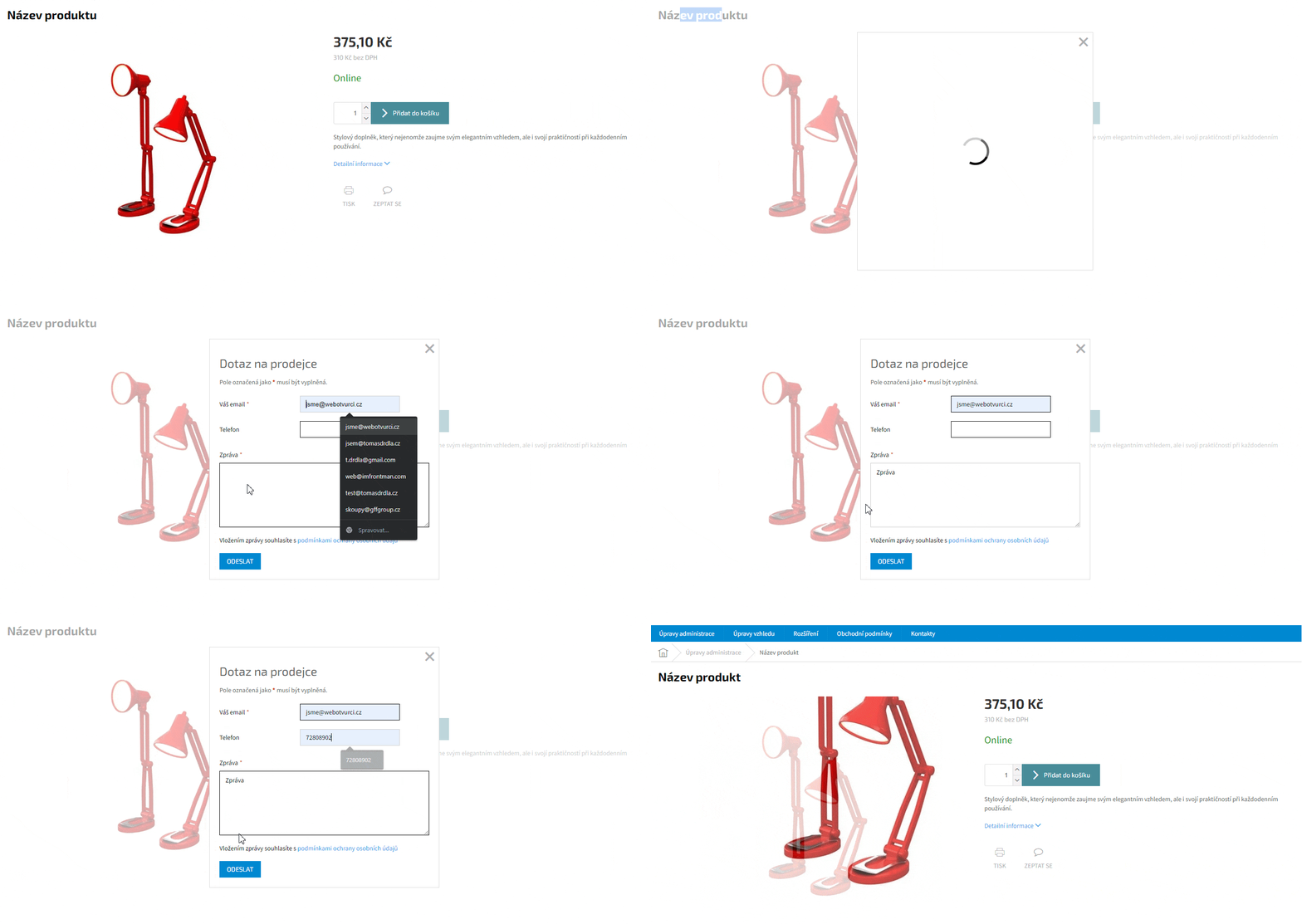
Setting it up step by step
- Generate the code. In the generator you enter the heading, the text and the button label, and you choose what happens on click (open a form, open a web page, or open a prefilled email). The preview sits right next to the settings, so you can fine-tune the texts before anything goes on your store.
- Paste the code into Shoptet. In the administration open Appearance and content → Template designer → HTML editor → Footer
<BODY>and paste the generated code there, before the closing</body>tag. Save the change. A detailed walkthrough of how to get to the template HTML editor is in the guide How to insert CSS code into Shoptet. - Test it. Open any product page in your store, select the product name with your mouse and check that the pop-up appears and that the button leads where it should. When you want to change the texts, go back to the generator and replace the old code in the footer with the new one.