


Do you run a blog and try to help customers pick the right products? The Products in Articles add-on lets you add a dynamic product listing straight into your articles, easily and intuitively — it makes the decision easier for customers and supports your sales.
The listing keeps the same design and behavior as your categories, and hidden products are automatically replaced with current offers. You can load the products dynamically from a single URL, or pick them by hand — that way you tailor the add-on exactly to your needs. You can order it on Shoptet Add-ons.
In this guide we look at how to use the add-on to list specific hand-picked products next to an article. A guide to showing random products from a chosen category is on the add-on page.
Add-on setup
The add-on works right after installation, with nothing else to do. If you want to change how it behaves across the whole store, open the setup wizard. It generates a code snippet that you paste into your store footer (Appearance and content → Editor → HTML code → Footer section).
In the wizard you can set:
- Whether sliders are used
- The rules for showing them
- Whether unavailable products are shown
Note: The slider only works on Shoptet templates that support it: Disco, Samba, Jupiter, Merkur, Opal, Rubin, Adamin, Apeti Clear, Apeti Standard, Venus, Apollo, Dolomit, Titan, Carbon.
Inserting products into an article
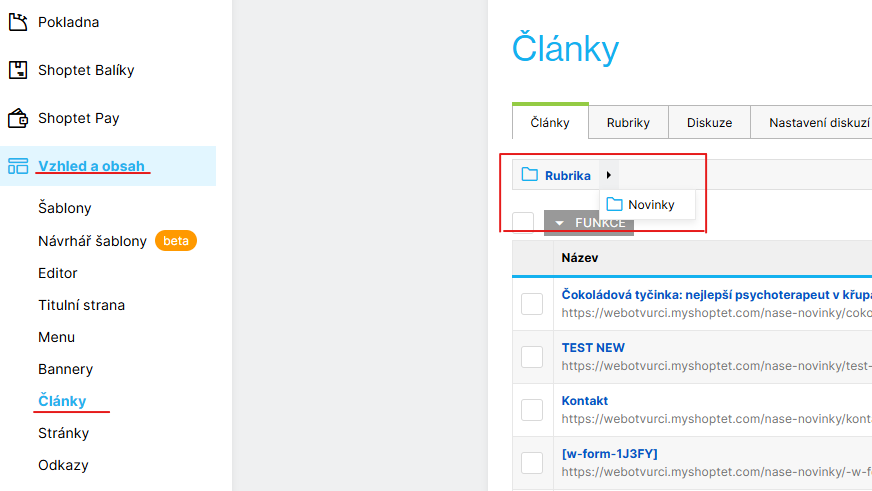
Find the blog category page
- On the store: In the menu, open the link with the blog category and pick the article you want.
- In the Shoptet admin: Go to Appearance and content → Articles → Section → the chosen section and pick the article.
Editing the article
The add-on got an update in April 2026 that made inserting products much simpler. You can now insert products with a short code that you paste straight into the text editor, with no HTML needed.
A big help when putting the short code together is the generator, which lets you:
- Show specific products (by entering their URLs)
- Choose the format (slider or grid)
- Order the products randomly
- Show products from a specific category
- Set how many products are shown
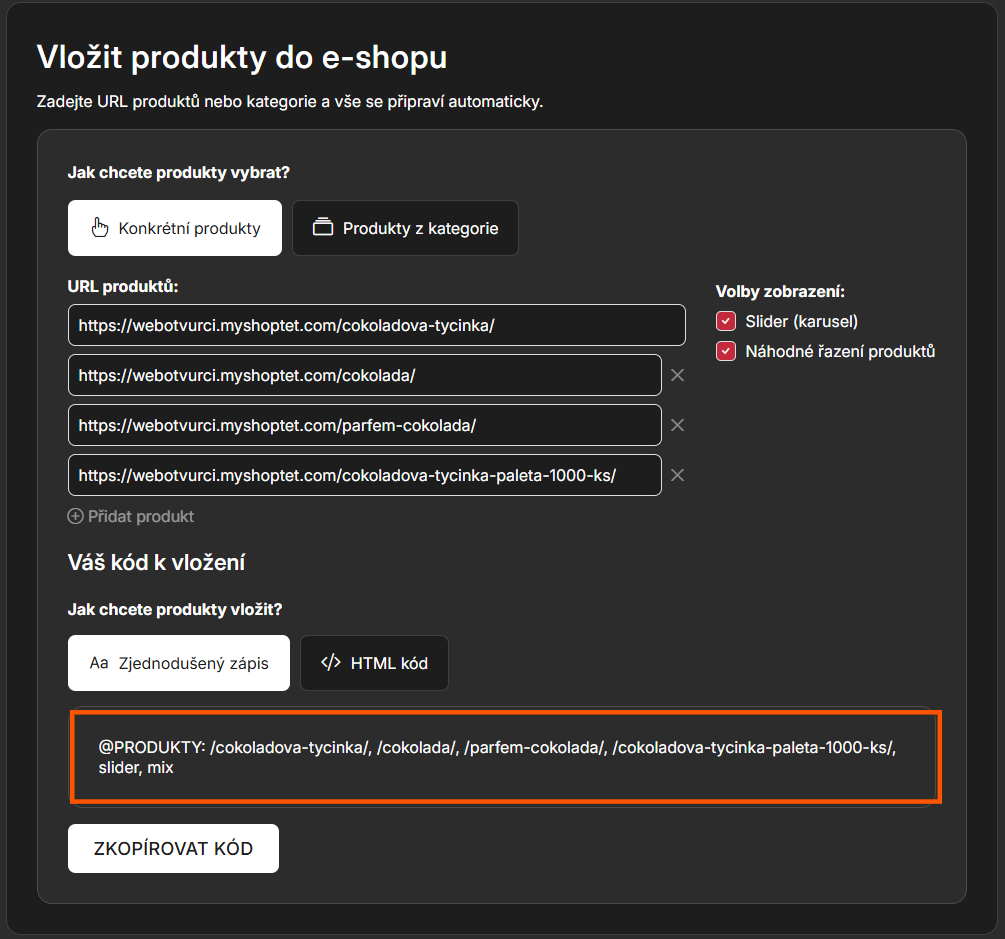
In the generator you first choose that you want to show specific products and add them by entering their URLs. Then you pick whether they should render as a slider (without that option the products show up in a grid) and whether they should be ordered randomly.
You can also set up products from a specific category. Enter the URL of the category the products should be loaded from, choose whether they show in a slider and whether they use the standard or the random order, and set how many products are shown.
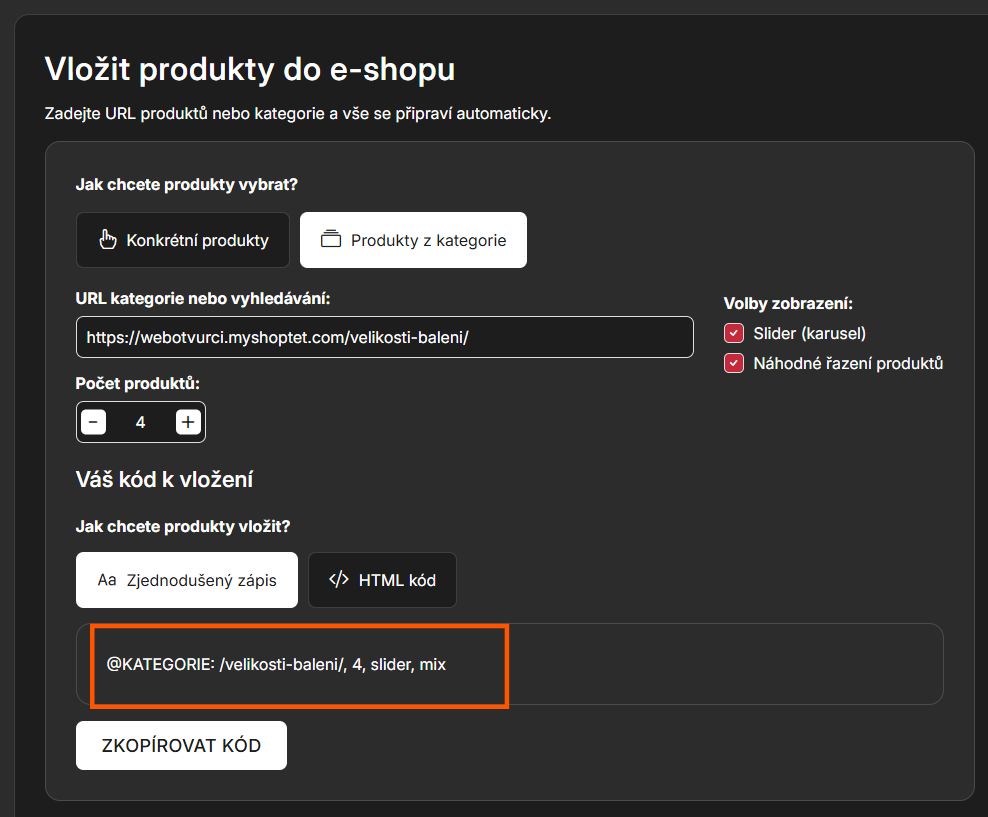
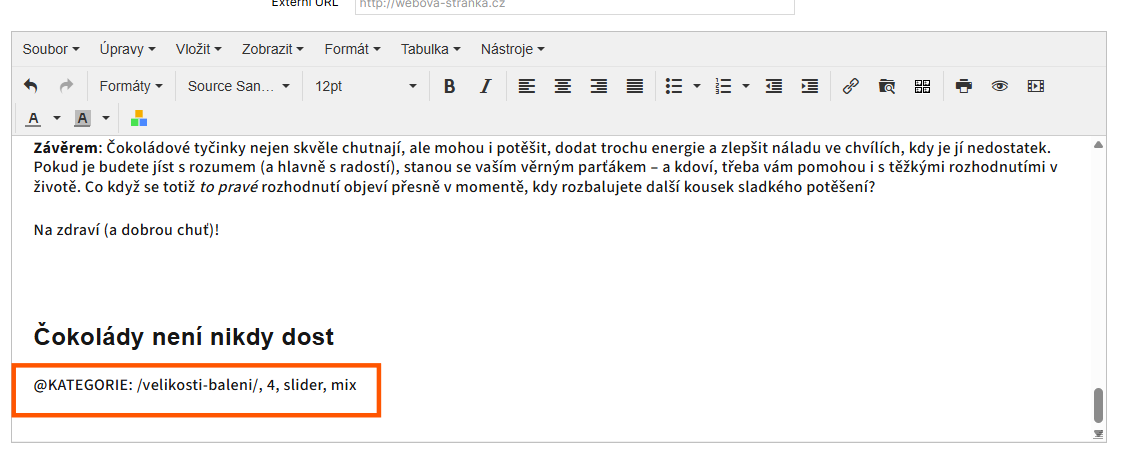
Copy the code highlighted in the screenshots and paste it directly into the article text. Once you save, the products render automatically.
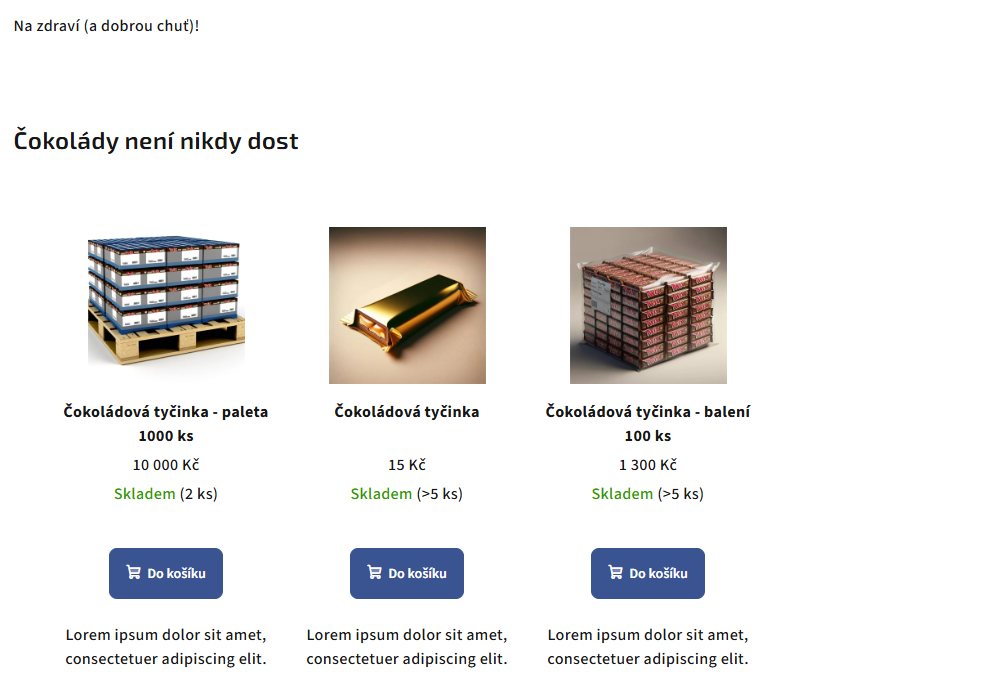
Alternative – HTML code:
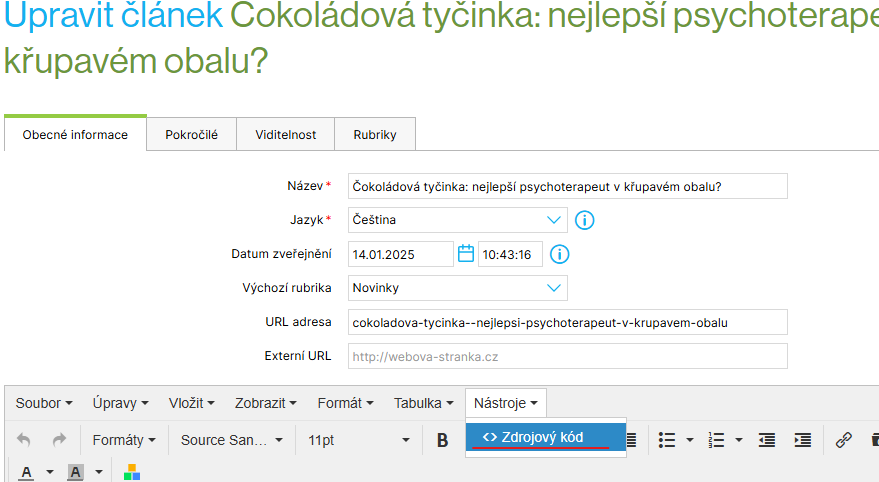
- In the Edit article screen, go to the content editor section
- Click Tools → Source code
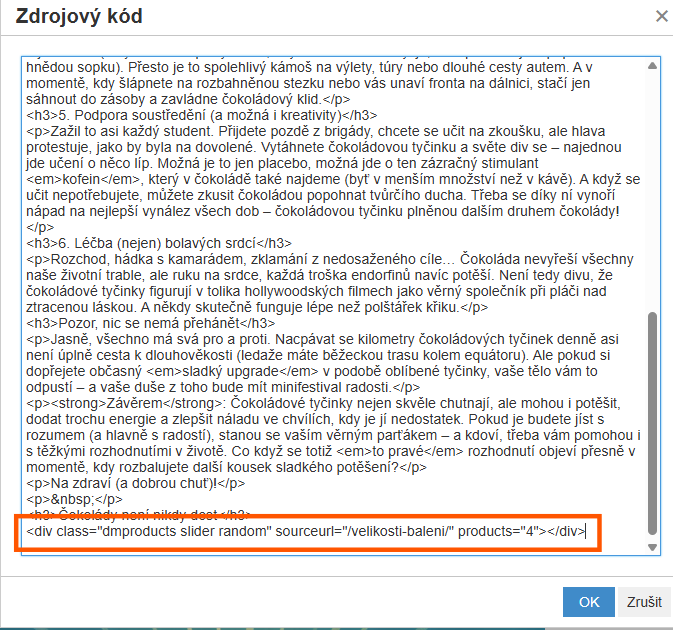
- Paste the code where you want it
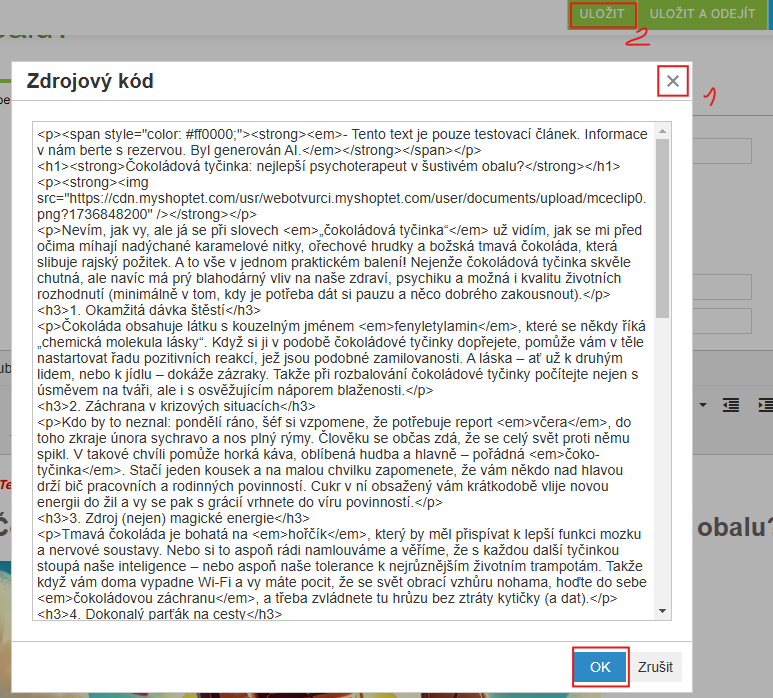
- Close the window and save the page
After every change, check the article on your store, including the mobile view.